HOW TO INSTALL APK GAMES ON ANDROID – COMPLETE GUIDE 2026
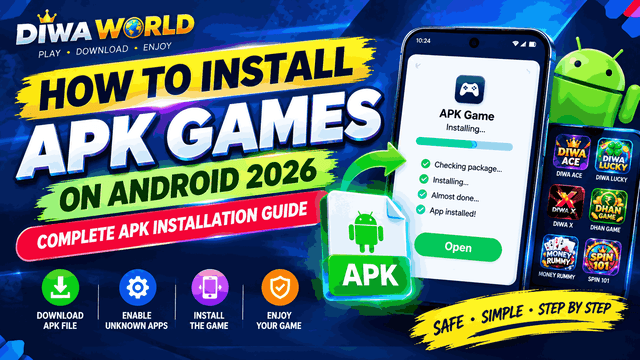
How to Install APK Games on Android – Complete Guide 2026
Want to know how to install APK games on Android? If you have downloaded an Android game as an APK file instead of installing it directly from Google Play, you can usually install it manually from your phone. This complete APK installation guide explains how to download an APK game, allow installation from the appropriate source, open the APK file, complete the installation and troubleshoot common Android APK installation problems.
Whether you are trying to install a DIWA Ace APK, DIWA Lucky APK, DIWA X APK, Dhan Game APK, Money Rummy APK or another Android game, the basic process is similar. However, Android security settings can differ depending on the Android version, phone manufacturer and security configuration.
What Is an APK File?
APK stands for Android Package. It is an installable package format used for Android applications. When you download an APK game from a website, the file can be opened on a compatible Android device to begin the installation process.
APK files are different from Android App Bundles. Google explains that an APK is the installable format, while an AAB is primarily a publishing format that must be processed by a distributor into APKs for installation.
Before installing an APK, always check the source, application name, version, Android requirement and permissions. Downloading applications from sources outside Google Play can carry additional security risks. Google recommends using trusted sources and keeping Google Play Protect enabled.
How to Install APK Games on Android
The following steps explain the standard Android APK installation process for a downloaded APK game.
Step 1: Find the APK Game You Want to Install
First, find the Android game you want to install. On DIWA WORLD, you can browse the available game pages and check the information published for each game.
You can explore the DIWA WORLD Games section or browse the DIWA Games category.
For example, you can check:
Step 2: Check the APK Information Before Downloading
Before you download an APK game, check the available information carefully. Look for the application name, version, file size, minimum Android requirement, developer information and package details when available.
A page claiming to contain the “latest APK” does not automatically prove that the file is genuine. If different websites show different versions, compare the information before installing the application.
Step 3: Download the APK File
Tap the APK download option and wait for the file to finish downloading. Depending on your browser and Android version, the file will normally be available through the Downloads folder or your Files application.
Do not install an APK simply because the filename looks familiar. Confirm that the file came from the source you intended to use and avoid modified APK files from unknown websites.
Step 4: Open the Downloaded APK
After the download finishes, open your phone's Files or Downloads application and locate the APK file.
Tap the APK file. Android should open the package installer or show a prompt asking which application should handle the file.
Step 5: Allow APK Installation When Android Requests Permission
On modern Android versions, installation from outside Google Play is controlled on a per-source basis. Android 8.0 and later use an Install unknown apps permission for the particular source, such as a web browser or file manager.
If Android displays a message saying that your phone is not allowed to install the application, open the requested settings and enable permission for the source you are using.
The exact menu name can vary by phone manufacturer. Look for an option similar to:
- Install unknown apps
- Allow from this source
- Install unknown applications
Only enable this permission for a source you understand and trust. After installing the APK, you can return to the same settings and disable the permission if you do not need it anymore.
Step 6: Install the APK Game
Return to the APK file and tap it again if necessary. Review the installation prompt and select Install if you want to continue.
Android will verify and install the application. The installation can take a few seconds or longer depending on the APK size and your phone.
Step 7: Open the Installed Game
After the installation finishes, tap Open or find the newly installed game in your Android app drawer.
Launch the game and complete any setup or update process requested by the application. Some games may require an internet connection or additional files before they can start.
How to Install APK on Android 8, 9, 10, 11, 12, 13, 14, 15 and Newer Versions
Android 8.0 and later generally use the Install unknown apps permission rather than one universal “Unknown sources” switch. Android's official documentation explains that permission is granted to a particular source that is trying to install the application.
Because Samsung, Xiaomi, Redmi, Realme, OPPO, Vivo, OnePlus, Motorola, Pixel and other manufacturers customize their settings menus, the exact location of the option can differ.
If you cannot find the setting, use the Settings search box and search for Install unknown apps or Unknown apps.
How to Install APK Games on Samsung Android Phones
On a Samsung phone, download the APK using your preferred browser and open the file from Downloads or My Files. If Android blocks the installation, open the relevant Install unknown apps setting and allow the browser or file manager that downloaded the APK to install applications.
The exact Samsung menu can change between One UI versions, so using the Settings search function can be easier than following an old menu path.
How to Install APK Games on Xiaomi, Redmi and POCO
Download the APK and open it through the Downloads or File Manager application. If installation is blocked, check the Android security settings for permission to install apps from the source that opened the APK.
MIUI and HyperOS menu names can vary by version, so search Settings for Install unknown apps if you cannot immediately find the option.
How to Install APK Games on Realme, OPPO and Vivo
Download the APK and open it from your file manager or browser downloads. If Android displays a security restriction, allow installation from the specific source shown in the system settings, then return to the APK and try again.
Do not enable installation permissions for unnecessary applications. Android's per-source model is designed to give users control over which application can initiate installation of apps from outside trusted stores.
How to Install APK Games on Older Android Phones
On Android 7.1.1 and earlier, the installation process can use an Unknown sources setting under Security. Android's official documentation distinguishes this older setting from the per-source installation permission introduced with Android 8.0.
Because older Android versions are no longer representative of most current devices, always check your phone's Android version before following an old APK installation tutorial.
APK Not Installing? Common Reasons and Fixes
1. Install Unknown Apps Is Disabled
If Android says that your phone is not allowed to install the APK, check the Install unknown apps permission for the browser or file manager that opened the APK.
2. APK Is Not Compatible With Your Android Version
An APK may require a newer Android version than the one installed on your phone. Check the game's minimum Android requirement before downloading.
3. APK File Is Corrupted
If the download was interrupted or the APK file is damaged, the installer may fail. Delete the incomplete file and download the application again from a trusted source.
4. Not Enough Storage
Make sure your phone has enough free storage for the APK and the installed application. Large games may also need additional storage for game data and updates.
5. Wrong APK Type or Split APK
Some applications are distributed as multiple APK components rather than one standalone APK. A single APK file may not contain every component required by the application. Android documentation notes that incomplete sideloaded split APK installations can fail on supported devices.
6. App Already Installed With a Different Signature
If an older version of the same application was installed from another source, Android may refuse to install an APK signed differently. In that situation, check the application's source and installation history before removing anything.
7. Android Security Protection Blocks the APK
Android and Google Play Protect can warn about potentially harmful applications. Google recommends keeping Play Protect enabled and warns that applications installed from unknown sources can increase security and privacy risks.
Why Is My APK Showing “App Not Installed”?
The App Not Installed message can have several causes. The APK may be incompatible, corrupted, improperly packaged, conflicting with an existing installation or missing required components.
First check the Android version, available storage, APK source and application version. If the problem continues, do not repeatedly install random APK files from different websites.
How to Check Android Version Before Installing an APK
Before installing an APK game, check your phone's Android version. Open Settings and look for About phone, About device or a similar option. The exact menu depends on the manufacturer.
Compare the Android version with the minimum Android requirement shown on the game's information page.
How to Keep Your Android Phone Safe When Installing APK Games
Installing an APK from outside Google Play requires additional care. Google specifically warns that apps from unknown sources can put the device and personal information at risk.
- Download APK files from a source you trust.
- Check the game name and version before installing.
- Check the minimum Android requirement.
- Avoid modified or cracked APK files from unknown sources.
- Do not grant unnecessary permissions.
- Keep Google Play Protect enabled.
- Do not disable security protections simply to install an unfamiliar file.
- Delete suspicious APK files instead of repeatedly trying to install them.
- Keep Android and your important applications updated.
Google says Play Protect checks applications for potentially harmful behavior and recommends keeping it turned on.
How to Update an APK Game to the Latest Version
If you already have an APK game installed and a newer version becomes available, first check whether the update comes from the same developer and source. Compare the version number and package information when available.
Installing an update over an existing application may work when the APK is compatible and signed appropriately. If Android reports a signature or package conflict, do not immediately uninstall the existing game if its local data is important. Check whether the game provides an official account or backup method first.
DIWA WORLD APK Games You Can Explore
If you are looking for Android games after learning how to install APK games, DIWA WORLD has dedicated pages for several games.
- DIWA Ace APK – game information and Android details
- DIWA Lucky APK – latest game information
- DIWA X APK – game page and installation information
- Dhan Game APK – Android game information
- Money Rummy APK – game information and updates
- Spin 101 APK – Android game information
For more games, visit the DIWA WORLD Games section.
Latest DIWA WORLD APK Guides
If you want to learn more about individual games and APK releases, explore these related DIWA WORLD articles:
- New DIWA Games 2026
- DIWA Games APK List
- Latest APK 2026 – New Android Games
- DIWA Games vs New APK Games
- DIWA X APK Latest Version
- Dhan Game APK Latest Version
- Money Rummy APK
- Spin 101 APK
APK Installation Checklist
Before installing any Android APK game, use this quick checklist:
| Check | What to Verify |
|---|---|
| APK source | Make sure you know where the file came from. |
| Game name | Confirm the APK matches the game you intended to download. |
| Version | Compare the version with the information provided by the developer or trusted source. |
| Android requirement | Make sure your Android version is supported. |
| Storage | Confirm there is enough free space. |
| Security | Keep Google Play Protect enabled and review warnings carefully. |
| Permissions | Review permissions requested by the application. |
Frequently Asked Questions About Installing APK Games
How do I install an APK game on Android?
Download the APK, open it from your Downloads or Files application, allow installation from the source when Android requests permission, and tap Install. On Android 8.0 and newer, the permission is normally controlled for the specific source attempting to install the APK.
Why can't I install an APK on my Android phone?
The APK may be incompatible, damaged, blocked by a security setting, conflicting with an existing installation or missing required components. Check your Android version, storage, APK source and installation permissions.
How do I allow APK installation on Android?
On Android 8.0 and newer, open the system's Install unknown apps settings and allow the specific browser or file manager that is installing the APK. The exact menu can vary by device manufacturer.
Is it safe to install APK games?
APK installation from outside Google Play carries additional risk because the application may not have gone through the same distribution protections as apps obtained from Google Play. Google recommends using trusted sources and keeping Play Protect enabled.
Can I install APK games without Google Play?
Android supports distribution outside Google Play, including applications hosted on websites. However, Android requires users to opt in to installation from sources outside trusted app stores, and the exact process depends on the Android version and device.
How do I update an APK game?
Check the newer version from the same trusted source and compare the application information before installing the update. Avoid installing a random APK simply because it claims to be a newer version.
What should I do if Android blocks an APK?
Read the warning first and identify why Android blocked the installation. If the file is from an unknown or suspicious source, do not bypass the warning just to complete the installation. For legitimate software, verify the developer and source before proceeding.
Final Guide: Install APK Games on Android
Learning how to install APK games on Android is straightforward once you understand the APK download and installation process. The most important steps are to check compatibility, download from a source you trust, allow installation only for the required source, review Android security warnings and keep Play Protect enabled.
For DIWA WORLD visitors, you can start by browsing the Games section, explore the DIWA Games category, and open the individual game page for the information available for that title.
Always verify an APK before installation and remember that the exact Android menus can differ between Samsung, Xiaomi, Redmi, POCO, Realme, OPPO, Vivo, OnePlus, Motorola, Pixel and other devices.
Featured Games

Money Rummy APK Download - Play Online Rummy And Win Real Cash
AVILABLE
Other Games · v2.0 · 36 MB

DIWA ACE APK
₹79 FREE
DIWA Games · v1.0 · 37 MB

DIWA ACE APK Download – New DIWA Game 2026
New Launch Offer – Check Official Terms
DIWA Games · vV3.2.11 · 44 MB
Comments (0)
No comments yet. Start the discussion!